
English
Create a property, add units, and publish its page
Use Properties to describe what you rent. A property is the building or location guests recognize; units are the apartments, rooms, houses, or villas that can be booked independently.
Add the property
- Open Properties in the workspace navigation.
- Choose Add property.
- Enter the public name, location, address, and a short description.
- Save the property. You can return to Edit property whenever these details change.
Use a real guest-facing name such as “Villa Mare,” not an internal code. The address and legal business details must be complete before the page can be published.
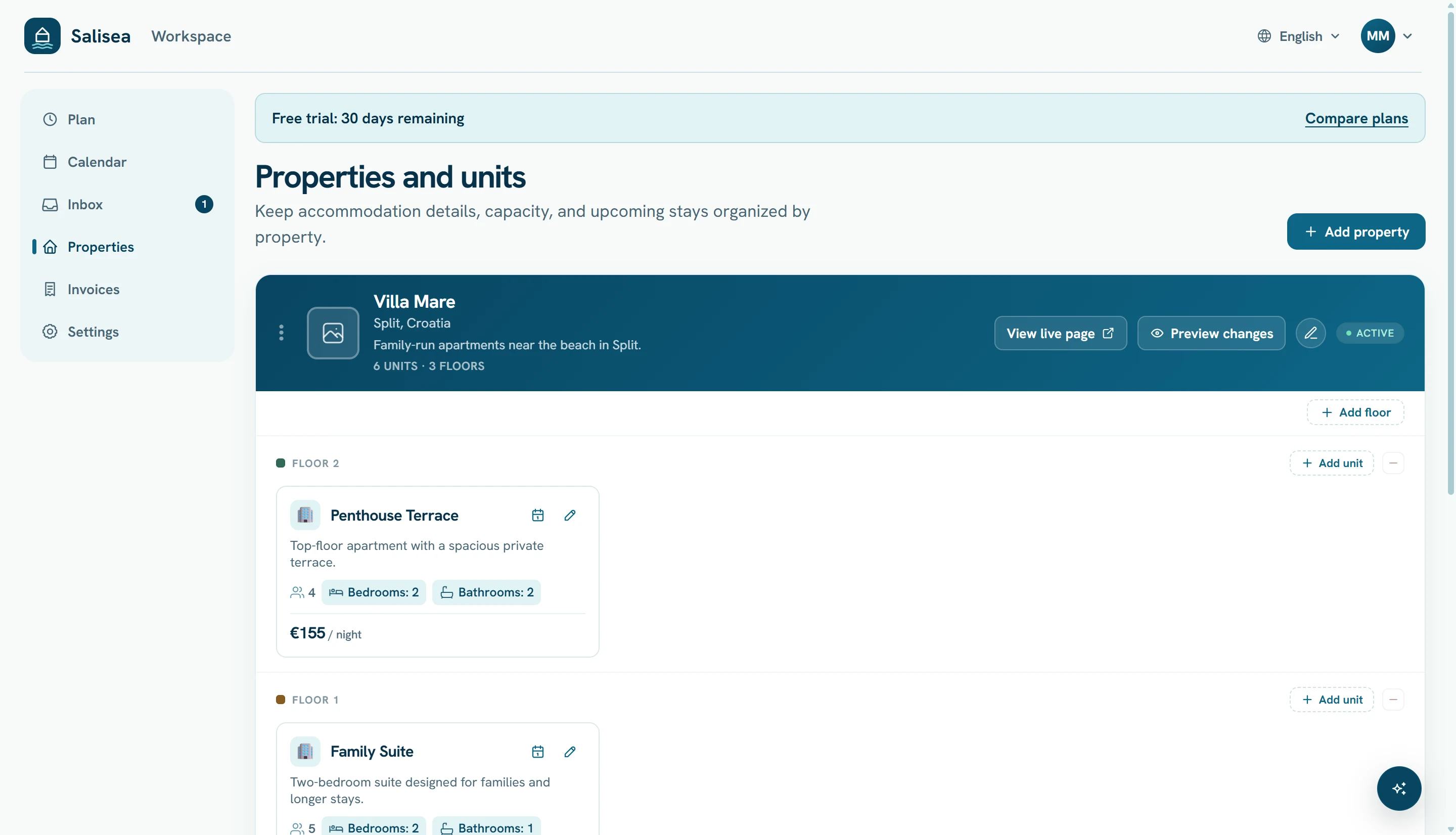
Organize floors and units
Add floors when they help your team identify where a unit is located. A single-floor property does not need extra floors.
Choose Add unit on the appropriate floor, then complete:
- unit name and accommodation type;
- maximum guests, bedrooms, and bathrooms;
- low-season/default and high-season nightly price;
- star rating and amenities;
- seasonal price periods, when needed;
- channel identifiers for supported booking channels;
- clear unit photos.
The first unit photo becomes its cover. Keep descriptions factual and avoid repeating information already shown by capacity or amenities.
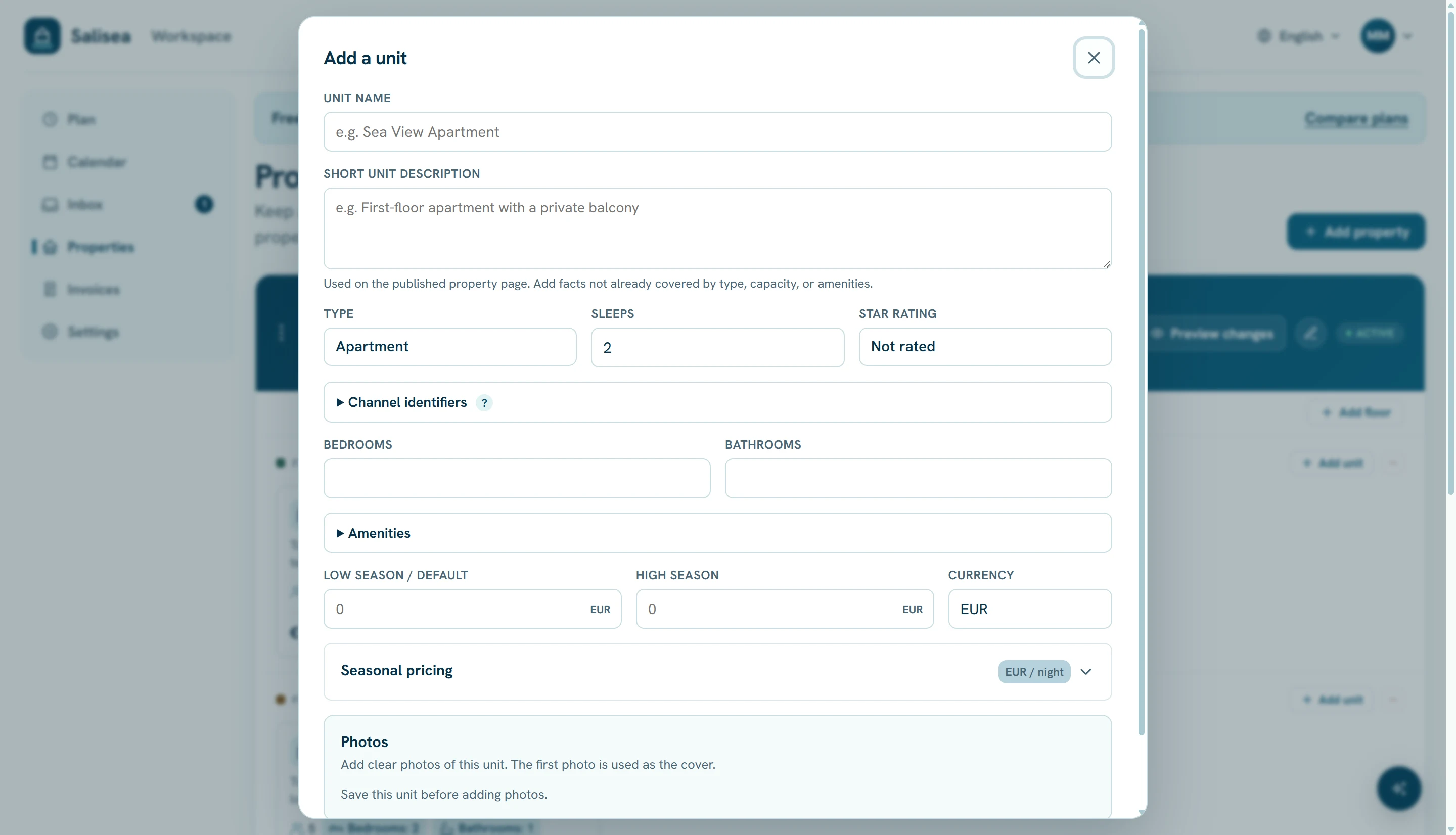
Save the unit and repeat for every independently bookable accommodation. Use the drag handles to place floors and units in the order guests should see them.
Preview before publishing
Choose Preview & publish on an unpublished property. Salisea prepares the exact page guests will see, including the property details, units, prices, photos, contact information, and availability calendar.
Check the page from top to bottom:
- Verify the property name, location, and contact details.
- Check each unit’s capacity, price, amenities, and cover photo.
- Confirm the postal address and map location.
- Make sure no private notes or internal labels appear.
- Choose Publish page.
If publishing is blocked, follow the link to Settings and complete the missing legal details.
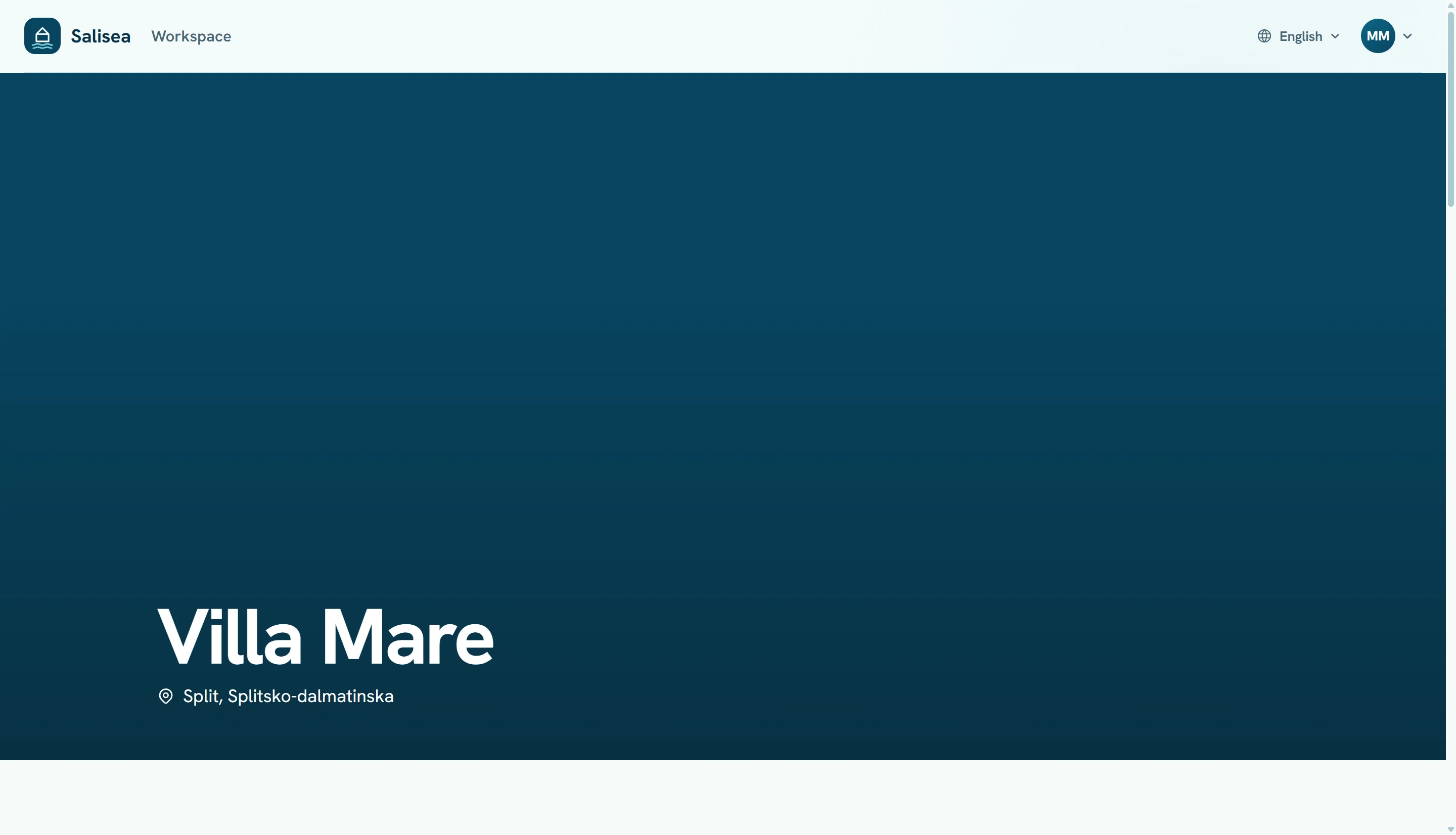
After the first publication, the property card shows View live page and Preview changes. Editing does not silently change the public page: preview the new revision and choose Publish changes when it is ready.
Keep the page current
Update photos, descriptions, amenities, and rates whenever the offer changes. Calendar availability updates separately through bookings, blocks, and connected iCal feeds, so you do not need to republish the page after every reservation.