
English
Create and use reply templates
Templates save repeated typing while keeping every outgoing message under owner review. They can be available to every property or limited to one property.
Create a template
Open Templates from the workspace settings area and choose New template in Add a template or version.
Enter:
- a clear internal name, such as “Late arrival instructions”;
- the category: available inquiry, unavailable inquiry, deposit, booking confirmation, arrival, common answer, or checkout;
- the language;
- an optional property restriction;
- an optional subject and the message body.
Use the allowed variables where facts should come from the current inquiry or booking. Available values include guest name, property, unit, dates, guest count, stay total, deposit details, payment reference, and check-in time.
For example, a greeting can use the guest-name variable instead of a fixed name. Always preview the inserted result before sending.
Choose Save new version. To add another language or revise approved wording, select the existing template and save a new version instead of overwriting its history.
Insert a template into a reply
Open an inquiry, expand Add to reply, and choose the appropriate template.
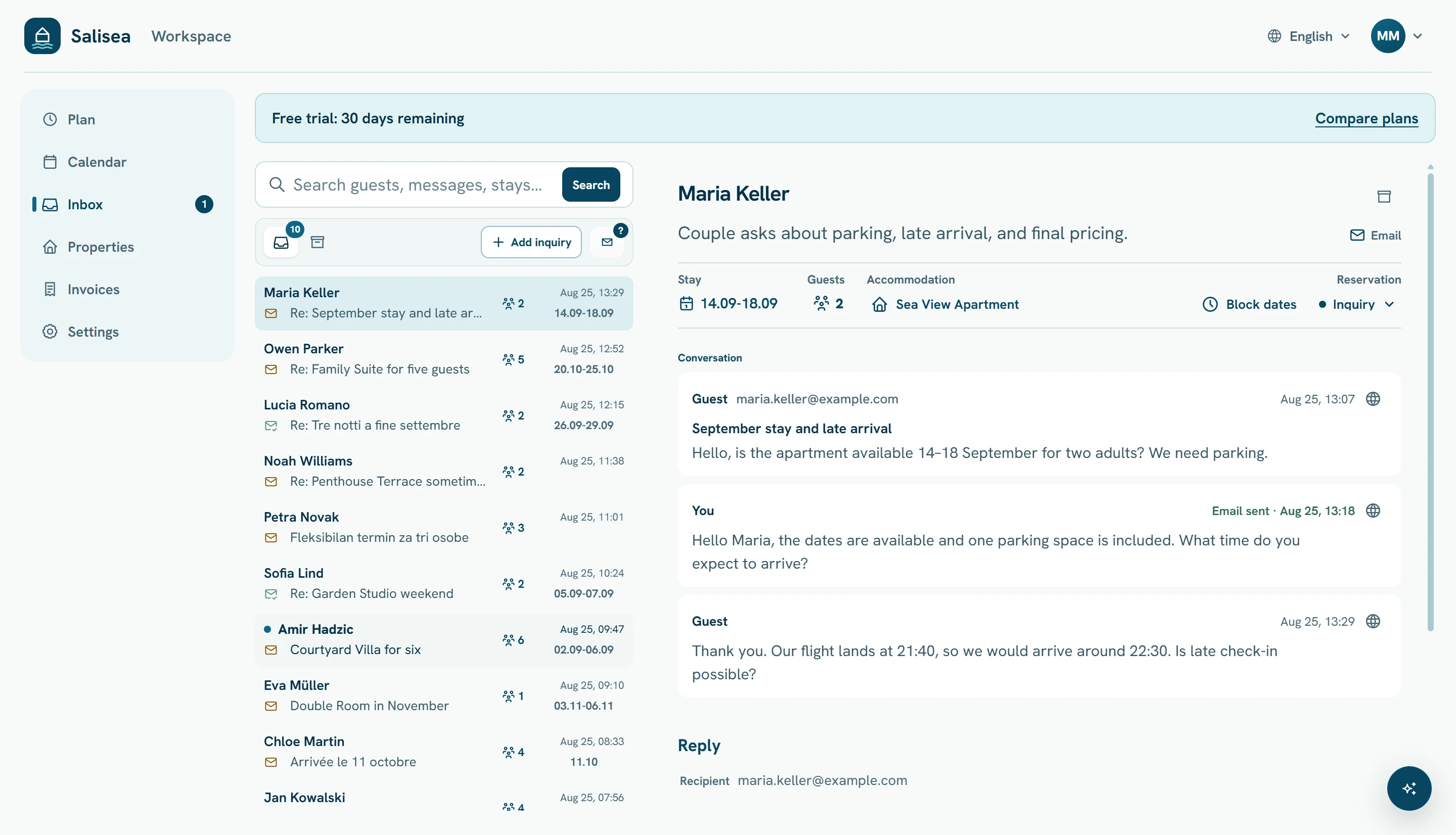
The template is added to the current reply. Review the resolved guest, property, unit, dates, price, deposit, and arrival information. Adapt the message to answer the guest’s actual question, then send it normally.
Templates are starting points, not automatic messages. They do not send anything until you approve the reply.
Keep the template library useful
Prefer a small set of specific, current templates over many near-duplicates. Useful starter templates are:
- accommodation available;
- accommodation unavailable with alternatives;
- deposit instructions;
- booking confirmation;
- arrival and parking instructions;
- checkout instructions.
Archive a template when it should no longer be used. Create property-specific versions only when the instructions genuinely differ, such as a unique key box, parking entrance, or bank account.